
AI Assistant Memory, Fact Candidate Review & Cognitive Settings
Discover how Conversora's long-term semantic memory remembers customer preferences and stages learned facts for merchant review.
- Understand how Aura remembers customer preferences (sizing, color choices, past purchases) across conversations.
- Audit and approve AI-discovered 'Fact Candidates' in the merchant staging queue before they become permanent memory.
- Configure cognitive memory parameters including retention duration and auto-pruning rules.
- Comply with customer privacy and GDPR/local regulations with one-click customer memory deletion.
Before configuring this feature, confirm that your store meets the following requirements:
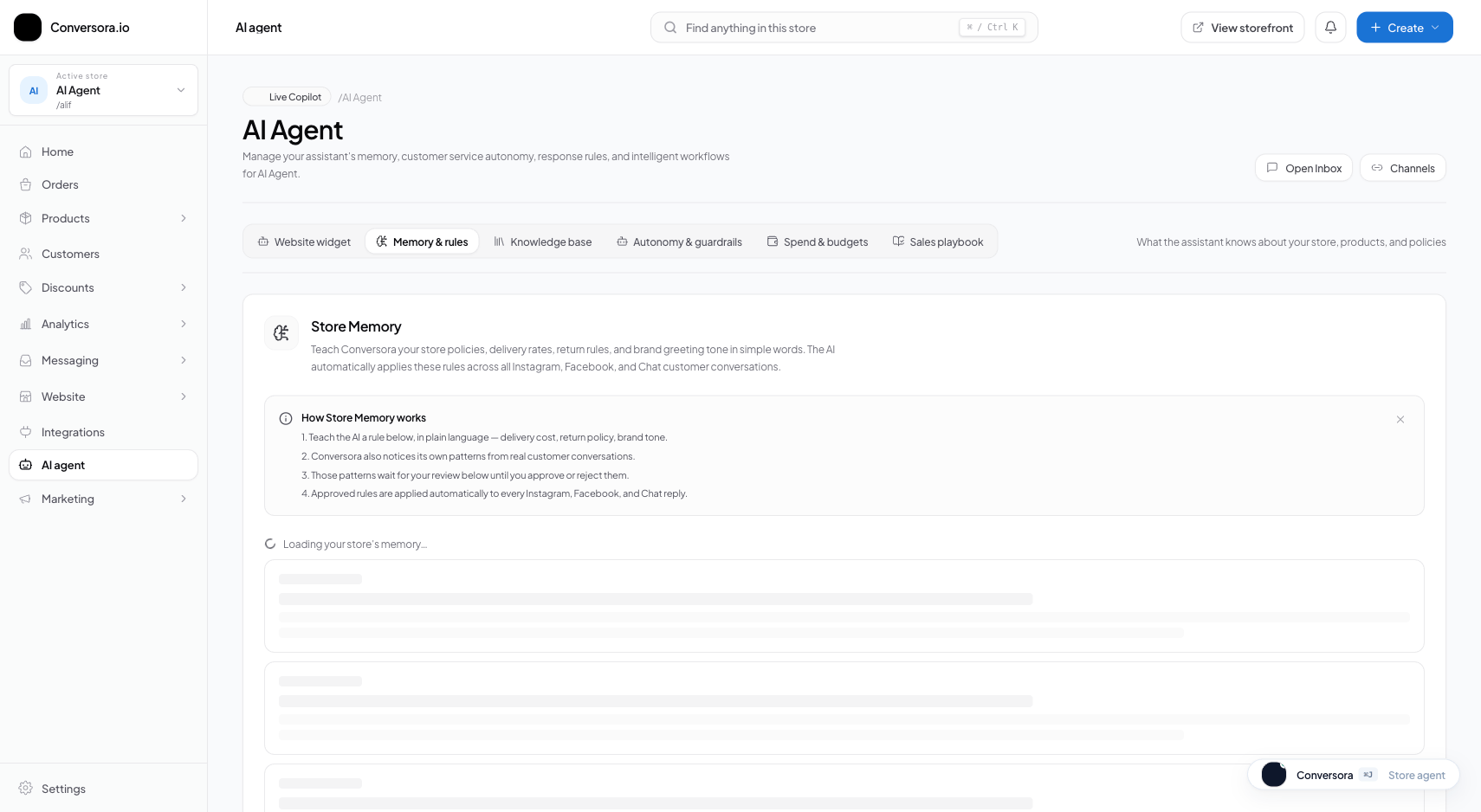
Interface view for this workflow.
1. Reviewing & Approving Fact Candidates
To ensure memory remains accurate and free of noise, Conversora provides a 'Fact Candidate' review queue. Here, you can review statements the AI deduced during customer conversations before they are committed to permanent memory.
For example, if a customer said 'I am buying this shirt for my husband who is 6 feet tall', the AI might propose the fact: 'Customer's husband is 6ft tall, wears XL'. You can verify the accuracy with one click.
Open Memory Review Queue
From the admin console, navigate to AI Employee and select 'Memory & Learning'.
Inspect Pending Candidates
Review the list of proposed facts, including the customer name, source conversation snippet, and proposed memory.
Approve or Discard
Click 'Approve' to index the memory, or 'Discard' to permanently delete the candidate.
You can enable 'Auto-Approve Low Risk Facts' (such as standard clothing sizes) in Cognitive Settings to save time on routine approvals.
2. Customer Privacy & Memory Deletion
Respecting customer privacy is paramount. If a customer requests that their personal information or memory history be deleted, Conversora enables instant compliance.
Deleting a customer's memory purges all associated vector records from Cloudflare Vectorize and removes customer attribute records from the database immediately.
Locate Customer Record
Search for the customer in the Customers list or directly inside the Omnichannel Inbox.
Click 'Clear AI Memory'
In the customer profile card, select 'Clear AI Memory' and confirm.
Practical Business Scenarios
How leading merchants implement this functionality in daily operations:
Troubleshooting & Common Issues
Diagnose and resolve frequent failure points quickly:
Frequently Asked Questions
Is customer memory shared across different merchant stores?
Never. Memory vectors are strictly partitioned by storeId. A customer's preferences in Store A are completely invisible to Store B.