
Connecting Telegram Bot for Customer Support & Store Alerts
Create and connect a custom Telegram bot to handle customer conversations, receive instant order notifications, and alert staff of escalated chats.
- Create a custom Telegram bot using Telegram's official @BotFather tool in 2 minutes.
- Link your Bot Token to Conversora to receive customer chats directly in your Omnichannel Inbox.
- Configure a private staff Telegram group to receive real-time order alerts and escalation chimes.
- Enable Aura Bot to conduct conversational commerce directly within Telegram.
Before configuring this feature, confirm that your store meets the following requirements:
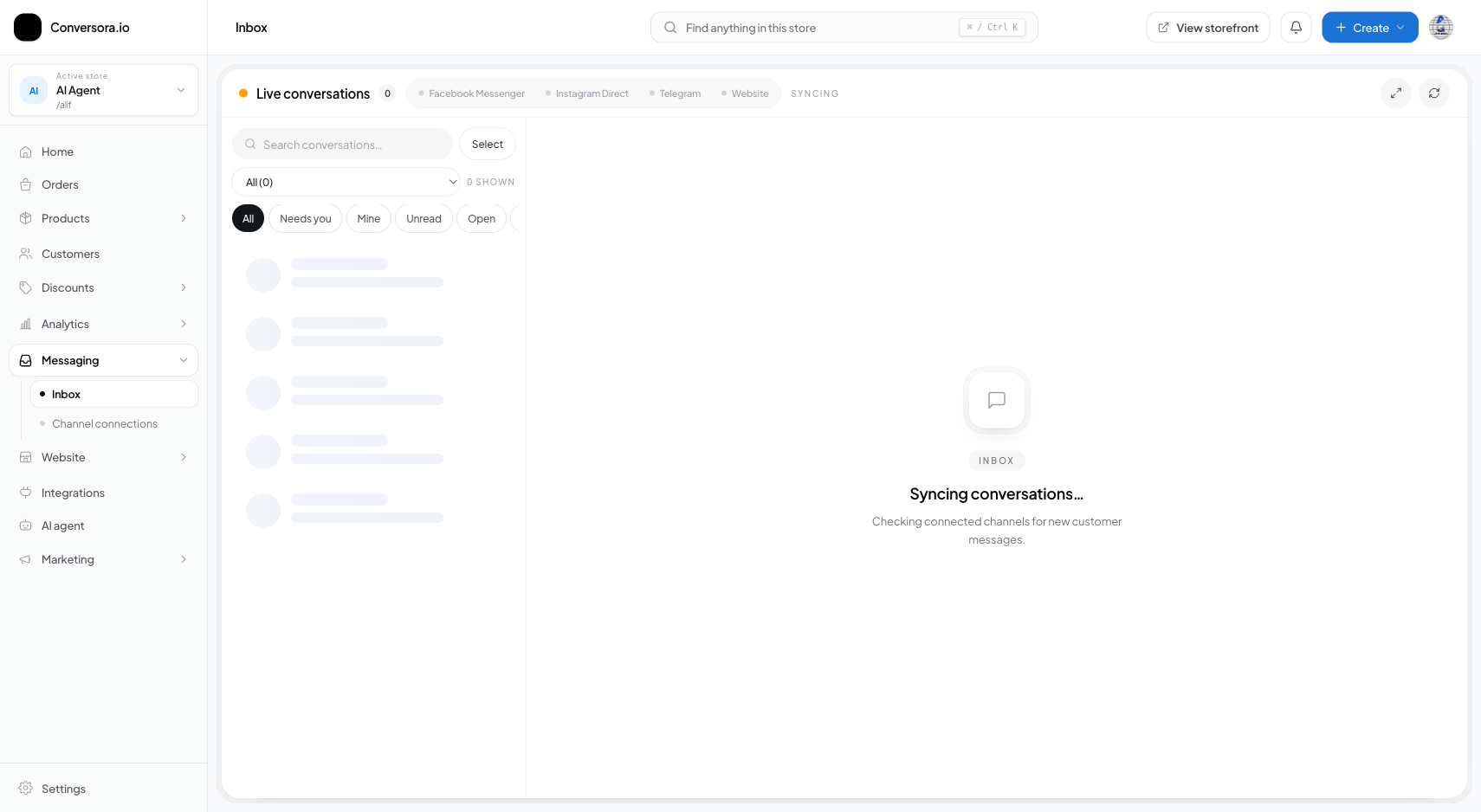
Interface view for this workflow.
1. Creating Your Bot with @BotFather
All Telegram bots are created through Telegram’s official administrative bot, @BotFather.
Creating a bot is free and takes less than two minutes. You will choose a public display name and a unique username ending in 'bot' (e.g. AuraLiving_Bot).
Open Telegram & Search @BotFather
Open the Telegram app and search for '@BotFather' (look for the verified blue checkmark).
Send /newbot Command
Start a chat with BotFather and send the command: /newbot.
Name Your Bot
Follow the prompts to enter your bot's display name and unique username ending in 'bot'.
Copy API Token
BotFather provides an HTTP API Token (e.g., 7123456789:ABCdefGHIjklMNOpqrs). Copy this token.
2. Linking Token in Conversora Admin
Once you have your token, link it inside Conversora to activate the webhook pipeline.
Your token is stored using AES-256 encryption. Conversora immediately verifies the token with Telegram's getMe API to confirm the bot is healthy.
Navigate to Telegram Settings
In the admin console, go to Messaging > Connections and find the Telegram card.
Paste Bot Token
Paste your copied API Token into the field and click 'Connect Bot'.
Verify Webhook Confirmation
Conversora registers the webhook. The status updates to 'Active' with your bot's username displayed.
Practical Business Scenarios
How leading merchants implement this functionality in daily operations:
Troubleshooting & Common Issues
Diagnose and resolve frequent failure points quickly:
Frequently Asked Questions
Can customers order directly through Telegram?
Yes. Aura Bot can guide Telegram customers through product selection and take their delivery address to generate confirmed orders, identical to Instagram.