
Order Processing Lifecycle: From Placed to Delivered
Master the complete order lifecycle: track incoming orders, transition fulfillment statuses, manage customer notifications, and handle cancellations or returns.
- Understand the five primary order states: Pending, Confirmed, Processing, Shipped, and Delivered.
- Filter, search, and bulk-update order records across multi-location warehouse teams.
- Trigger automated SMS and WhatsApp tracking notifications to customers upon fulfillment.
- Process partial returns, stock restocking, and customer refunds cleanly without inventory drift.
Before configuring this feature, confirm that your store meets the following requirements:
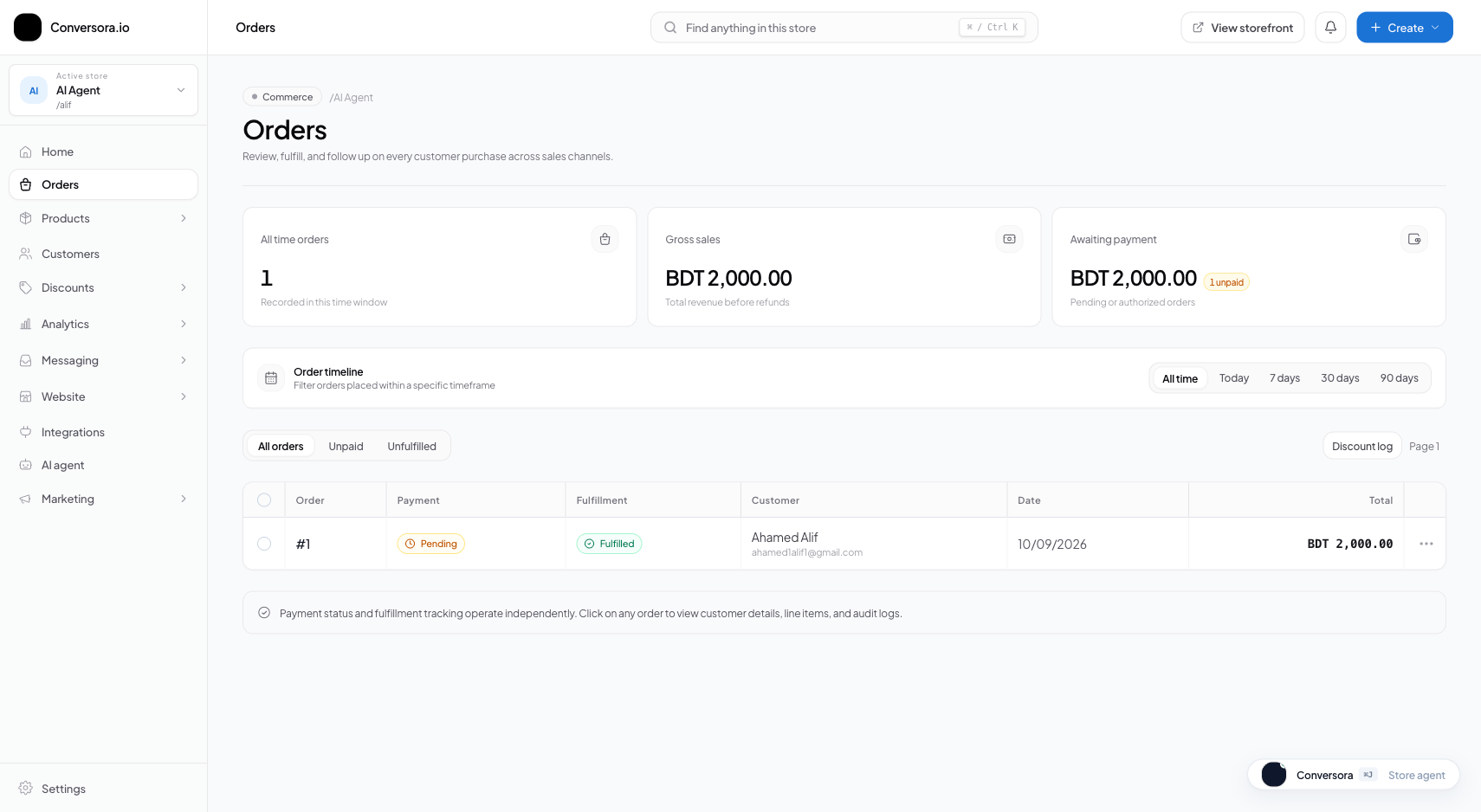
Interface view for this workflow.
1. Understanding the 5 Order Pipeline Stages
Every order moves systematically through five distinct operational stages:
- PENDING: Order placed by customer, awaiting merchant confirmation or manual payment verification (e.g. verifying bKash TrxID).
- CONFIRMED: Order verified by merchant and queued for warehouse picking.
- PROCESSING: Warehouse staff have picked items and are packaging the parcel with the PDF packing slip.
- SHIPPED: Parcel handed to the courier partner with a valid tracking consignment number.
- DELIVERED: Parcel successfully received and paid for by the customer.
Navigate to Orders
From the admin sidebar, select 'Orders' to open the primary order queue.
Filter by Status
Click the status tabs (e.g. 'Pending' or 'Confirmed') to view orders needing immediate action.
Inspect Order Details
Click any order row to view the itemized items, customer delivery address, and payment status.
2. Fulfilling Orders & Dispatching Shipments
When a package is boxed and ready for courier pickup, open the order and transition its status to 'Shipped'.
Enter the courier name and tracking consignment number. Conversora automatically formats a clickable tracking URL for the customer.
Open Order Details
In the order drawer, click 'Fulfill Items'.
Enter Courier Information
Select your courier partner and paste the consignment tracking code.
Confirm & Dispatch
Click 'Mark as Shipped'. The customer receives an automated shipping notice immediately.
If you connect Steadfast or RedX in Settings > Checkout & Delivery, one click generates the consignment ID automatically without copying and pasting.
Practical Business Scenarios
How leading merchants implement this functionality in daily operations:
Troubleshooting & Common Issues
Diagnose and resolve frequent failure points quickly:
Frequently Asked Questions
Can I print bulk shipping labels for multiple orders at once?
Yes. Select multiple orders in the table using the checkboxes and click 'Bulk Actions > Print Invoices' to generate a consolidated PDF.