
Training Your AI: FAQs, Document Uploads & Store Rules
Learn how to feed your brand's sizing charts, return policies, shipping guidelines, and custom business rules into your AI employee's semantic knowledge base.
- Upload PDF documents, text files, and custom FAQ pairs into your store's dedicated knowledge base.
- Understand how semantic chunking and vector embeddings retrieve exact information during customer chats.
- Define store rules for returns, exchanges, delivery timelines, and care instructions.
- Use the interactive AI Knowledge Sandbox to test and refine how Aura answers questions before going live.
Before configuring this feature, confirm that your store meets the following requirements:
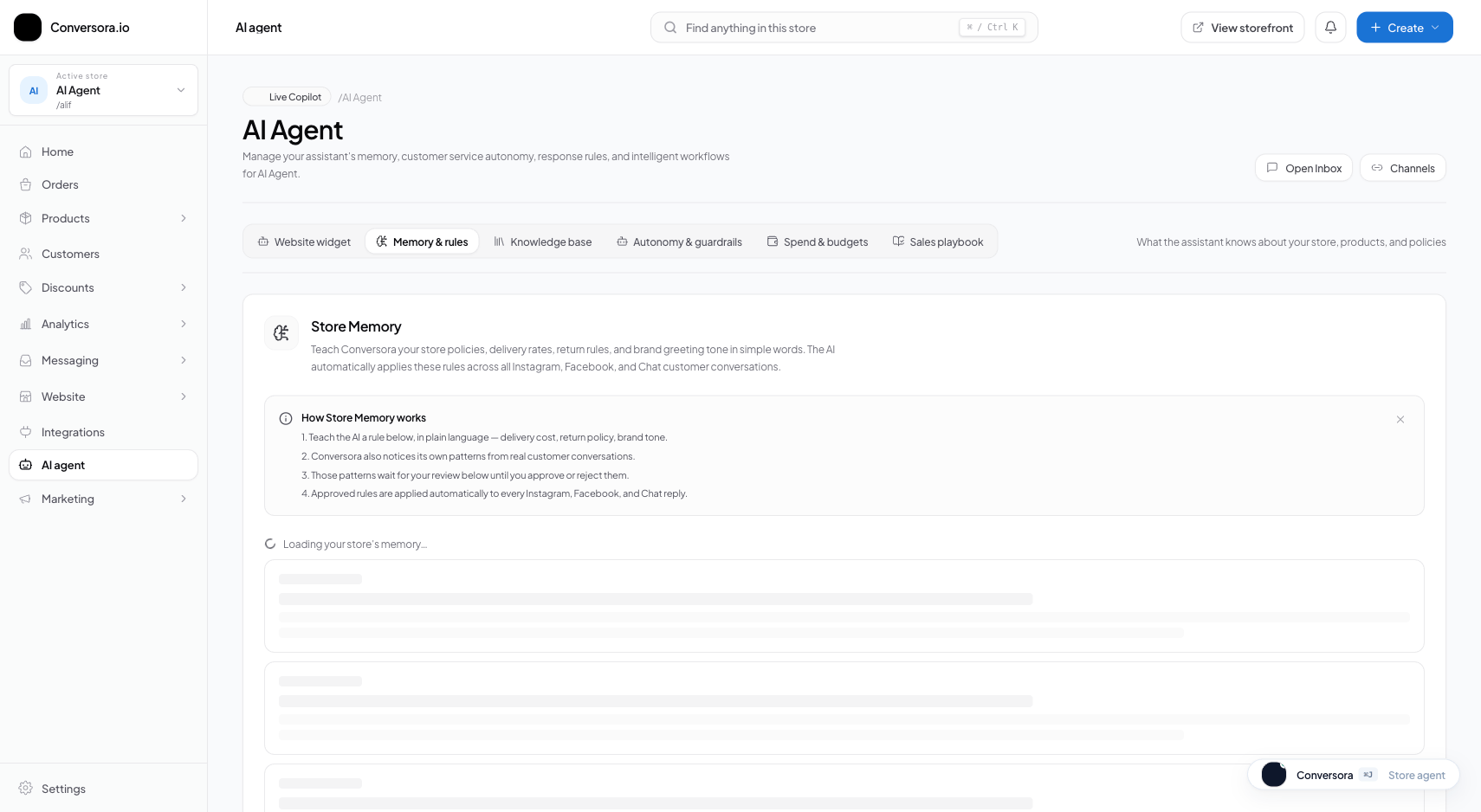
Interface view for this workflow.
1. Adding Custom Question-and-Answer Pairs
The fastest way to teach your AI specific facts is by creating explicit FAQ pairs. FAQ pairs are ideal for concise, unambiguous rules such as delivery charges, return fees, and customer service contact numbers.
When creating an FAQ pair, write the question in the natural, colloquial phrasing that your customers commonly use. Aura’s semantic vector index automatically matches questions even if the customer uses different synonyms, slang, or regional phrasing (e.g., 'delivery charge koto?' vs 'what is shipping cost?').
Navigate to Knowledge Base
In the admin console, select 'AI Employee' and click on 'Knowledge Base'.
Click 'Add FAQ'
Click the '+ Add FAQ' button in the upper-right corner of the FAQ panel.
Enter Question & Answer
Provide the primary question and a comprehensive, friendly answer.
2. Uploading Policy Documents & Sizing Charts
For comprehensive policy manuals, terms of service, or multi-page product care guidelines, uploading PDF or text documents is more efficient than creating dozens of separate FAQ pairs.
Conversora automatically processes uploaded documents through its edge chunking pipeline. You can view the indexed chunk count directly in the document list and toggle individual documents active or inactive at any time.
Open Document Uploader
Switch to the 'Documents' tab inside the Knowledge Base panel.
Upload File
Drag and drop your PDF or TXT file (up to 10MB) into the upload zone.
Verify Processing Status
Wait 5-10 seconds for the status badge to transition from 'Processing' to 'Indexed'.
Practical Business Scenarios
How leading merchants implement this functionality in daily operations:
Troubleshooting & Common Issues
Diagnose and resolve frequent failure points quickly:
Frequently Asked Questions
How long does it take for new knowledge to take effect in AI chats?
Vector indexing completes within 5 to 10 seconds. Once the document shows 'Indexed', Aura incorporates the information on the very next customer message.