
Store Profile, Currency, Timezone & Team Members
Detailed guide to setting up your company profile, legal details, operating currency, local timezones, and inviting team members with role-based permissions.
- Configure official brand name, business support email, contact phone, and legal business address.
- Select your store's primary transaction currency and regional timezone for accurate sales reporting.
- Upload high-resolution brand logos, light/dark brand marks, and browser favicons.
- Invite team members, warehouse dispatchers, and support agents with granular role-based permissions.
Before configuring this feature, confirm that your store meets the following requirements:
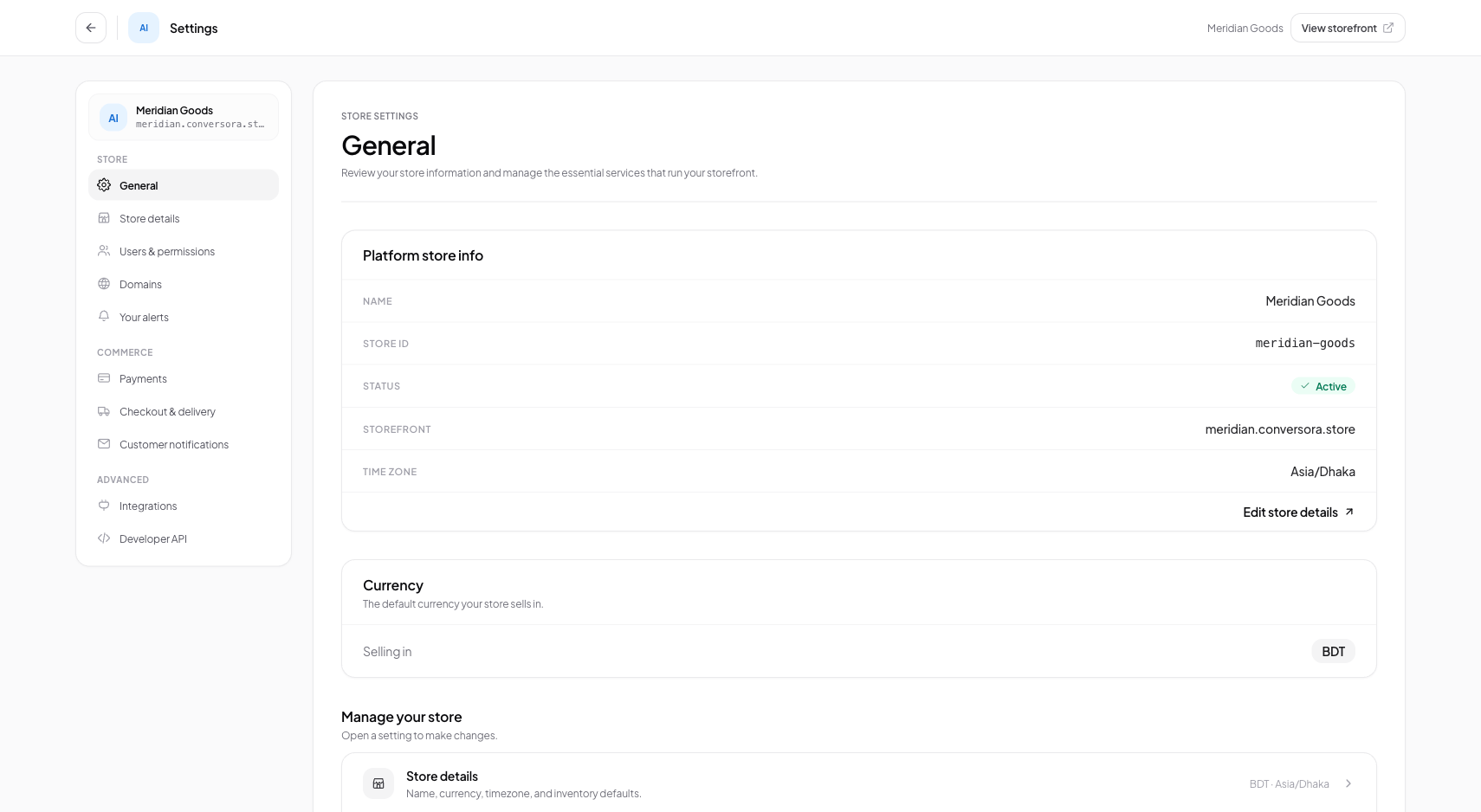
Interface view for this workflow.
1. Business Information & Legal Contact Details
Accurate business information builds trust with online shoppers and ensures your transactional emails and invoices comply with local consumer protection regulations.
The legal business name, physical office or warehouse address, and customer support phone number entered here are automatically included on all generated PDF invoices and storefront contact pages. Ensure the customer service email address is monitored regularly, as notification replies and payment disputes are directed to this inbox.
Open General Settings
From the admin console sidebar, navigate to Settings and click on 'Store Profile'.
Fill Contact Information
Provide your Legal Business Name, Public Brand Name, Support Email Address, and WhatsApp / Phone Number.
Add Physical Location
Enter your registered business street address, city, postal code, and country.
2. Setting Operating Currency & Regional Timezones
Your currency and timezone configurations govern financial calculations and temporal scheduling across your entire store.
Conversora supports major global currencies (USD, EUR, GBP, CAD, AUD) alongside regional currencies such as Bangladeshi Taka (BDT) and Indian Rupee (INR). Selecting your currency formats all price tags, discount thresholds, and courier delivery charges across the platform.
The timezone setting controls how the analytics dashboard calculates 'Today’s Sales' and determines when scheduled discount coupons activate and expire. If your business operates in Dhaka, setting your timezone to Asia/Dhaka (UTC+6) ensures your daily sales summary resets at midnight local time.
Select Currency
In the Regional Settings section, open the Currency dropdown and select your primary operating currency.
Select Timezone
Search for and choose your local timezone from the list of IANA standard timezones.
Save Changes
Click 'Save Regional Settings'. The platform updates all currency formatters immediately.
Never change currency frequently after processing live orders, as historical order records retain their original numerical currency figures.
3. Inviting Team Members & Assigning Staff Roles
Scaling an e-commerce business requires delegating tasks such as order packaging, customer chat replies, and catalog updates to team members without compromising master store credentials or sensitive banking details.
Conversora provides multi-user organization management powered by Clerk. Store Owners can invite staff members by email and assign them specific operational roles: - Administrator: Full access to all features, including payment gateways, custom domains, staff management, and billing. - Team Member: Access to daily operational workflows including Products, Orders, Omnichannel Inbox, and Customer Lists, while sensitive billing and API credentials remain restricted.
Open Team Management Hub
Navigate to Settings and select 'Team & Members'.
Send Member Invitation
Click 'Invite Member', input their work email address, and select their intended role (Admin or Member).
Member Accepts Invitation
The invited user receives an email containing a secure signup link. Once accepted, they gain immediate access to your store console.
Practical Business Scenarios
How leading merchants implement this functionality in daily operations:
Troubleshooting & Common Issues
Diagnose and resolve frequent failure points quickly:
Frequently Asked Questions
How many team members can I invite to my store?
Standard plans include up to 5 team members, while Growth and Enterprise plans support unlimited staff seats with granular permission controls.
Can I remove a team member's access immediately if they leave the company?
Yes. In the Team & Members workspace, locate the user and click 'Revoke Access'. Their active session is invalidated immediately across all devices.
Can a team member manage multiple stores under one login?
Yes. If a user is invited to multiple stores, they can use the store switcher dropdown at the top of the admin console to seamlessly switch between stores without signing out.