
Setting Up Stripe & Credit Card Payments
Accept international Visa, Mastercard, American Express, Apple Pay, and Google Pay with automated webhook reconciliation powered by Stripe.
- Accept global credit and debit cards securely using Stripe Elements hosted card fields.
- Support mobile one-click checkout via Apple Pay and Google Pay.
- Configure Stripe Webhook endpoints with cryptographic signature verification.
- Test payment transactions safely in Test Mode using Stripe testing card numbers.
Before configuring this feature, confirm that your store meets the following requirements:
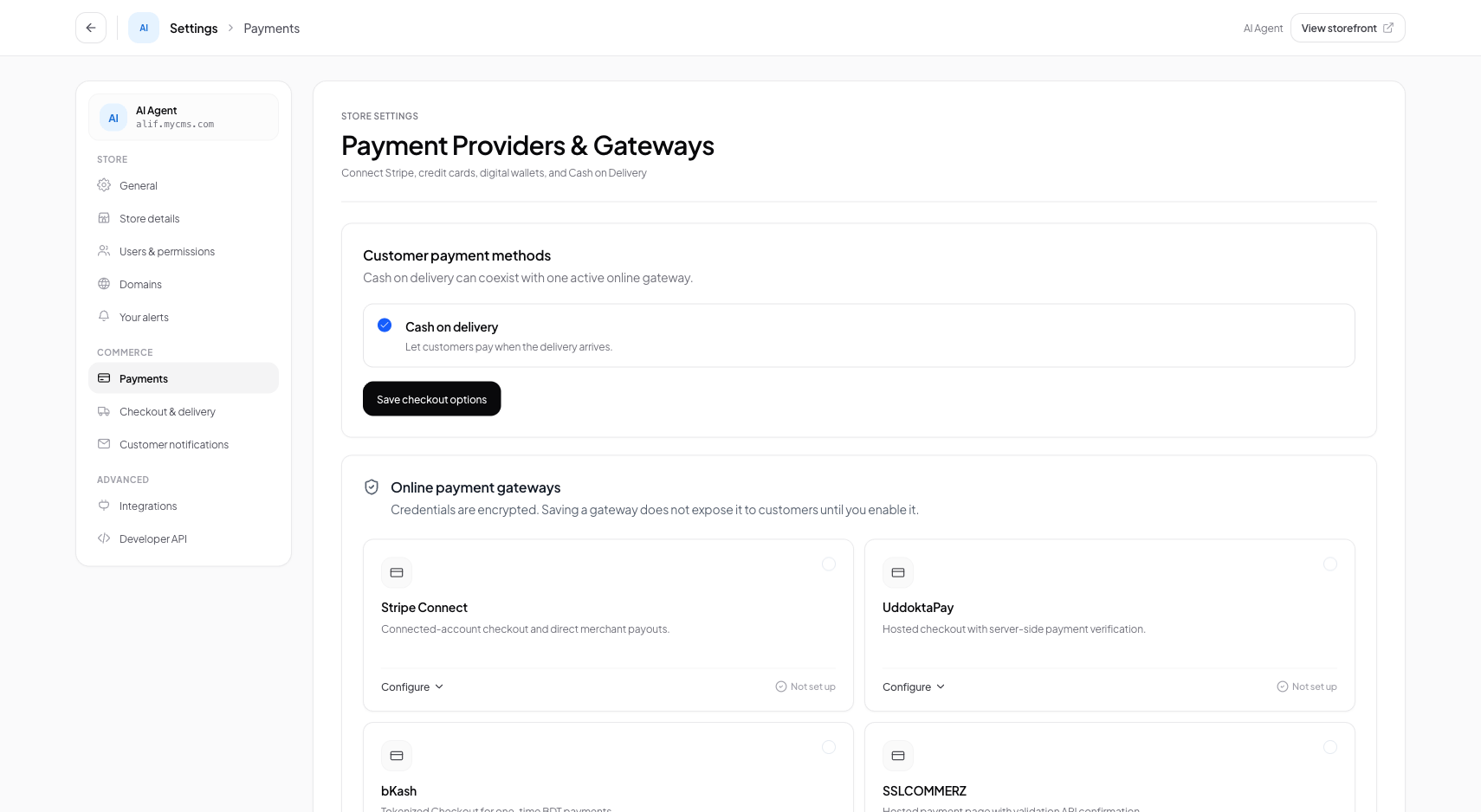
Interface view for this workflow.
1. Connecting Stripe API Keys
Linking Stripe to your Conversora store requires pasting your Stripe Publishable Key and Secret Key into your payment settings.
You can begin in Test Mode (using keys prefixed with pk_test_ and sk_test_) to verify the checkout flow before switching to live credentials.
Open Payment Settings
From the admin menu, select 'Settings' and click 'Payments'.
Enable Stripe Card Payments
Locate the Stripe card and toggle the status to 'Active'.
Enter API Keys
Paste your Publishable Key and Secret Key into the corresponding fields.
Save Configuration
Click 'Save Keys'. Conversora validates the keys with Stripe and activates card checkout.
2. Verifying Test Transactions
Before accepting live payments, test the checkout flow using Stripe's standard test card number: 4242 4242 4242 4242.
Enter any future expiration date (e.g. 12/30) and any 3-digit CVC code (e.g. 123). Confirm that the order updates to 'Paid' and appears in your Orders dashboard.
Open Storefront in Test Mode
Visit your storefront, add a product to cart, and proceed to checkout.
Enter Test Card Details
Input 4242 4242 4242 4242 and complete the test purchase.
Practical Business Scenarios
How leading merchants implement this functionality in daily operations:
Troubleshooting & Common Issues
Diagnose and resolve frequent failure points quickly:
Frequently Asked Questions
Does Conversora charge transaction fees on Stripe payments?
No. Conversora does not take an extra percentage fee. You only pay standard Stripe processing fees (e.g., 2.9% + 30¢).