
Setting Up bKash, Nagad, Bank Wire & Cash on Delivery (COD)
Enable popular Bangladeshi payment methods: automated bKash merchant checkout, manual Nagad/bKash TrxID verification, and Cash on Delivery.
- Set up Cash on Delivery (COD) with custom advance deposit requirements.
- Connect automated bKash PGW (Payment Gateway) for instant tokenized checkout.
- Configure manual bKash and Nagad personal/merchant numbers with customer TrxID submission.
- Verify customer-submitted Transaction IDs directly from the order details view.
Before configuring this feature, confirm that your store meets the following requirements:
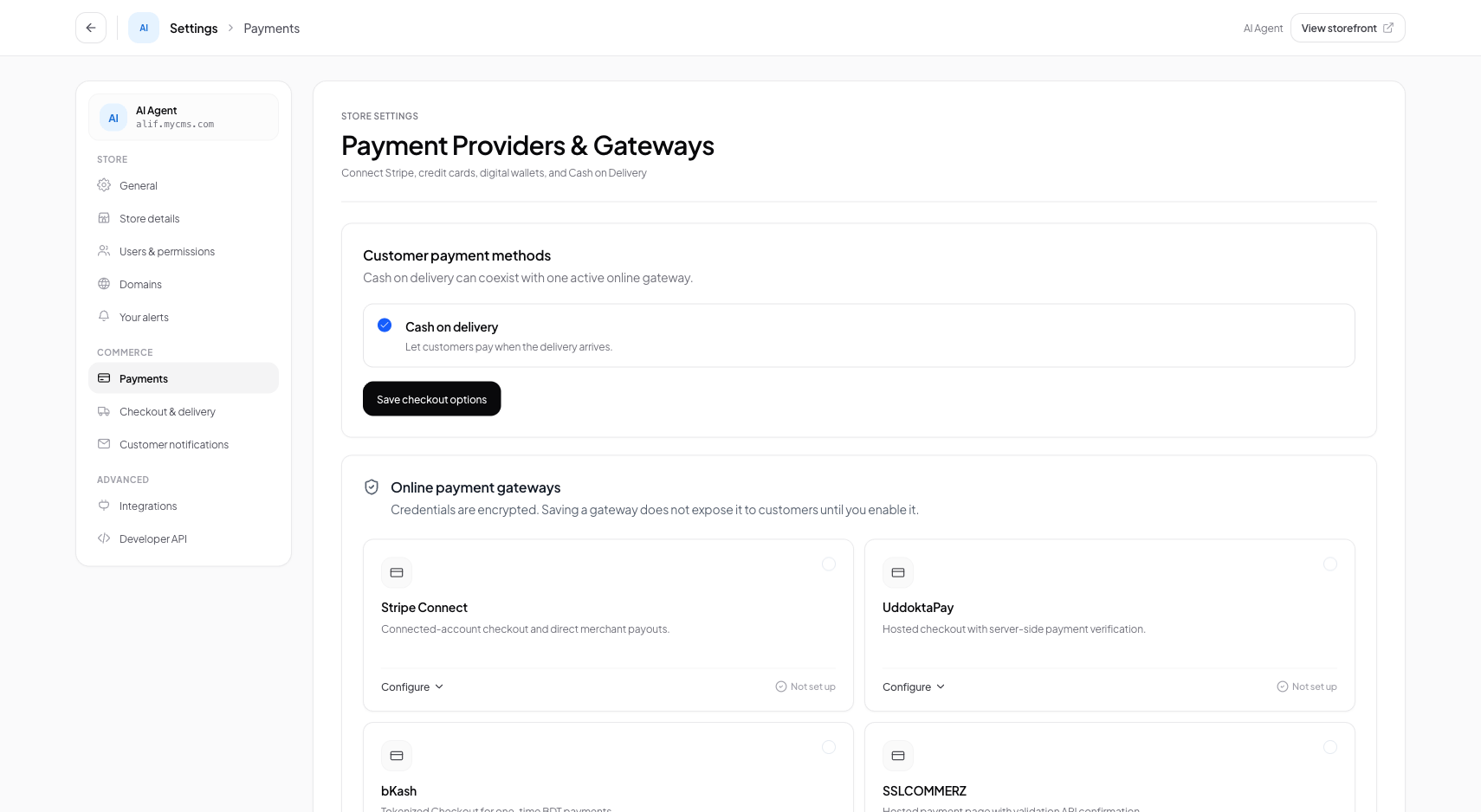
Interface view for this workflow.
1. Configuring Cash on Delivery (COD)
Cash on Delivery is enabled with a single toggle. You can optionally require customers to pay delivery charges in advance to prevent parcel return fraud.
Navigate to Payment Settings
Go to Settings > Payments in your admin navigation.
Enable Cash on Delivery
Toggle the 'Cash on Delivery (COD)' switch to active.
Set Advance Delivery Charge Rules
Optionally enable 'Require Delivery Charge Advance' if you wish customers to pay shipping via bKash before parcel dispatch.
2. Setting Up Manual bKash & Nagad (TrxID Submission)
If you do not have an enterprise bKash merchant API agreement, manual MFS enables you to accept mobile payments immediately.
Enter your bKash or Nagad number (Personal, Agent, or Merchant) and provide clear payment instructions (e.g. 'Use Send Money to 017XXXXXXXX with your order number as reference').
Open Manual MFS Settings
Click 'Configure' under the Manual bKash & Nagad payment card.
Input Phone Numbers & Instructions
Provide your receiver phone numbers and instructions for the customer checkout screen.
Save
Click Save. Shoppers can now select bKash or Nagad and submit their TrxID during checkout.
Practical Business Scenarios
How leading merchants implement this functionality in daily operations:
Troubleshooting & Common Issues
Diagnose and resolve frequent failure points quickly:
Frequently Asked Questions
How do I connect the official bKash Merchant Payment Gateway (PGW)?
In Payments, select 'bKash Merchant PGW', enter your bKash App Key, App Secret, Username, and Password provided by bKash commercial sales, and toggle to Live.