
Organizing Catalog: Hierarchical Categories & Smart Collections
Structure your catalog with intuitive multi-level category trees and dynamic automated collections based on price, tags, or popularity.
- Create multi-level category hierarchies (e.g. Men > Clothing > Jackets) for clear storefront navigation.
- Build Smart Automated Collections that dynamically group products matching specific rules (e.g. Sale Items under $50).
- Assign custom banner photography and SEO descriptions to category pages.
- Link categories directly into your storefront header navigation and footer menus.
Before configuring this feature, confirm that your store meets the following requirements:
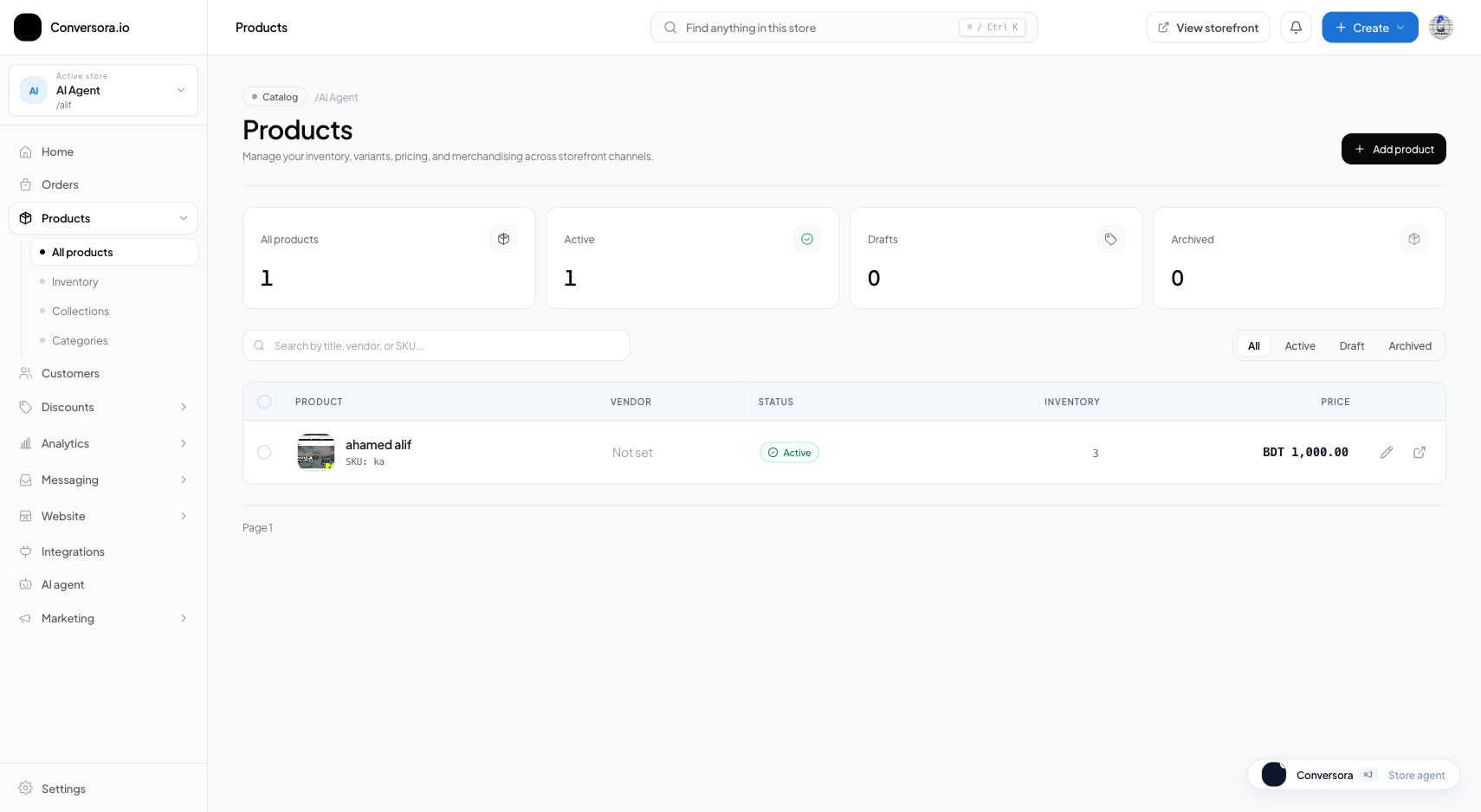
Interface view for this workflow.
1. Building a Category Hierarchy
Categories organize your products into intuitive departments. You can create top-level categories and nested subcategories to guide shoppers directly to what they need.
Each category includes an optional banner image and an SEO description that appears at the top of the collection page.
Navigate to Categories
From the admin menu, select 'Products' and click 'Categories'.
Create Category
Click '+ Add Category', enter the title (e.g. 'Outerwear'), and choose an optional parent category (e.g. 'Men').
Save & Assign Products
Click Save. You can now select this category when creating or editing any product.
2. Setting Up Dynamic Smart Collections
Smart collections save hours of manual curation. Instead of adding products by hand, define automated rules that continuously update the collection.
For example, you can create a 'Flash Sale' collection that automatically pulls all active products where the compare-at price is greater than the regular price.
Open Collections Tab
In the Products workspace, switch to the 'Collections' tab.
Define Filter Conditions
Select 'Automated Collection' and specify rules (e.g. 'Product Tag equals sale' OR 'Price is less than 50').
Save Collection
Click 'Save Collection'. All matching products are gathered into the collection instantly.
Practical Business Scenarios
How leading merchants implement this functionality in daily operations:
Troubleshooting & Common Issues
Diagnose and resolve frequent failure points quickly:
Frequently Asked Questions
Can a single product belong to multiple categories or collections?
Yes. A product has one primary category for navigation breadcrumbs, but can be included in unlimited automated collections simultaneously.