
Media Asset Library: Cloudflare R2 Storage & Optimization
Upload, organize, and manage brand photography with zero egress fees and automated WebP edge compression powered by Cloudflare R2.
- Upload high-resolution photography with automated WebP format conversion and lossless compression.
- Store unlimited brand graphics with zero egress fees powered by Cloudflare R2 object storage.
- Organize media into folder tags and reuse assets across multiple products and marketing banners.
- Deliver images globally via Cloudflare CDN with sub-30ms loading times on mobile devices.
Before configuring this feature, confirm that your store meets the following requirements:
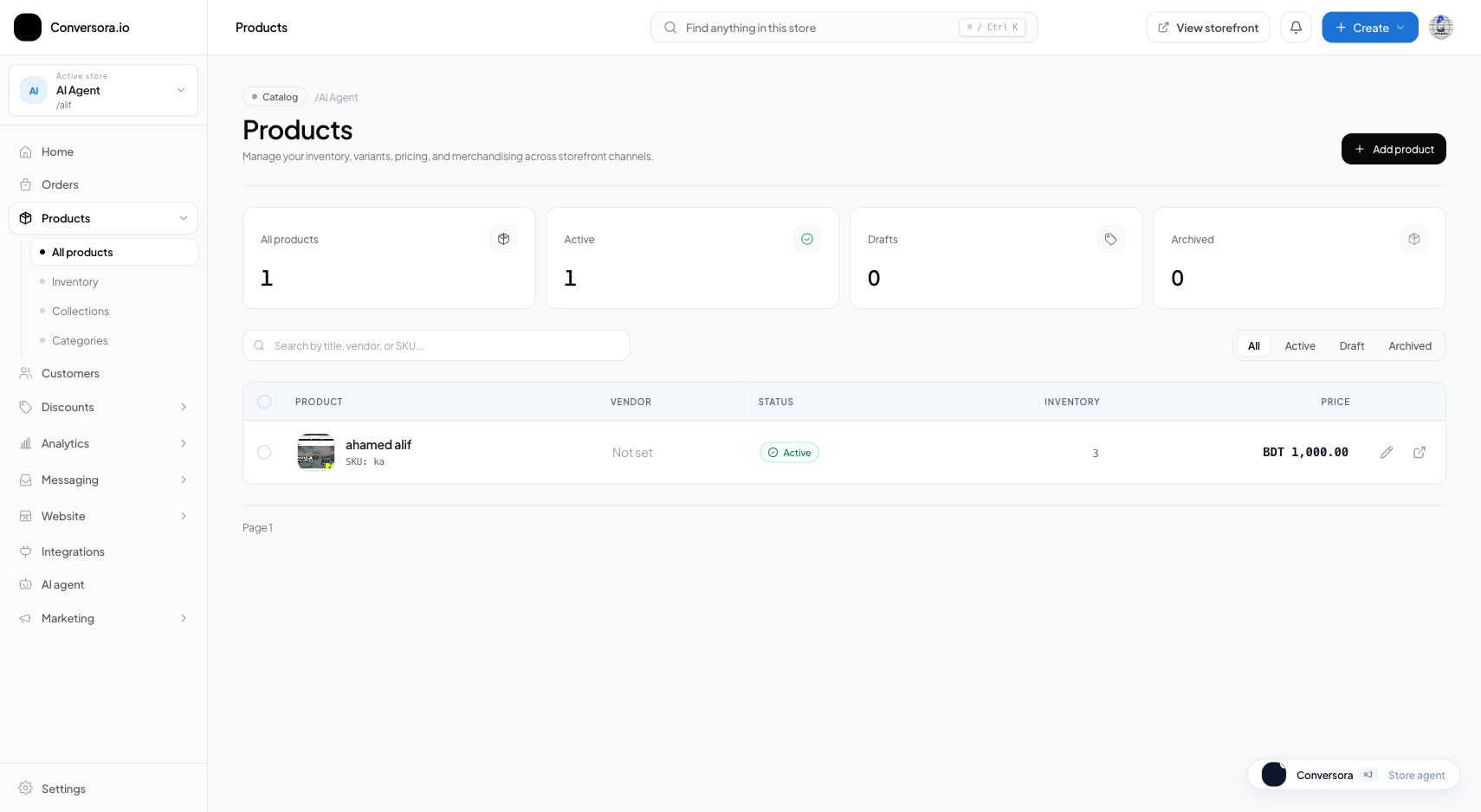
Interface view for this workflow.
1. Uploading & Managing Media Assets
You can upload single photos or batch-upload entire lookbooks simultaneously.
Use descriptive filenames before uploading (e.g. emerald-linen-shirt-front.jpg). Conversora indexes these filenames, making it easy to search your media library later.
Open Media Library
From the admin menu, select 'Media' to open the asset vault.
Drag & Drop Files
Drag multiple image files directly into the browser window or click 'Upload Media'.
Organize with Tags
Select uploaded images and apply tags (e.g., 'Summer 2026', 'Lookbook') for easy filtering.
Practical Business Scenarios
How leading merchants implement this functionality in daily operations:
Troubleshooting & Common Issues
Diagnose and resolve frequent failure points quickly:
Frequently Asked Questions
Does Conversora charge extra for image storage or bandwidth?
No. Standard storage and bandwidth are included in all active merchant plans with zero egress charges.