
Multi-Tenant Store Management & Instant Store Switching
Learn how Conversora's multi-tenant architecture enables you to create, manage, and switch between multiple brand stores from a single unified console.
- Manage separate retail brands, sister companies, or client storefronts under one master login.
- Switch between active store workspaces in one click without logging out or losing context.
- Benefit from strict multi-tenant database isolation guaranteeing zero cross-store data leakage.
- Maintain separate catalogs, customer databases, payment gateways, and AI employee knowledge bases per store.
Before configuring this feature, confirm that your store meets the following requirements:
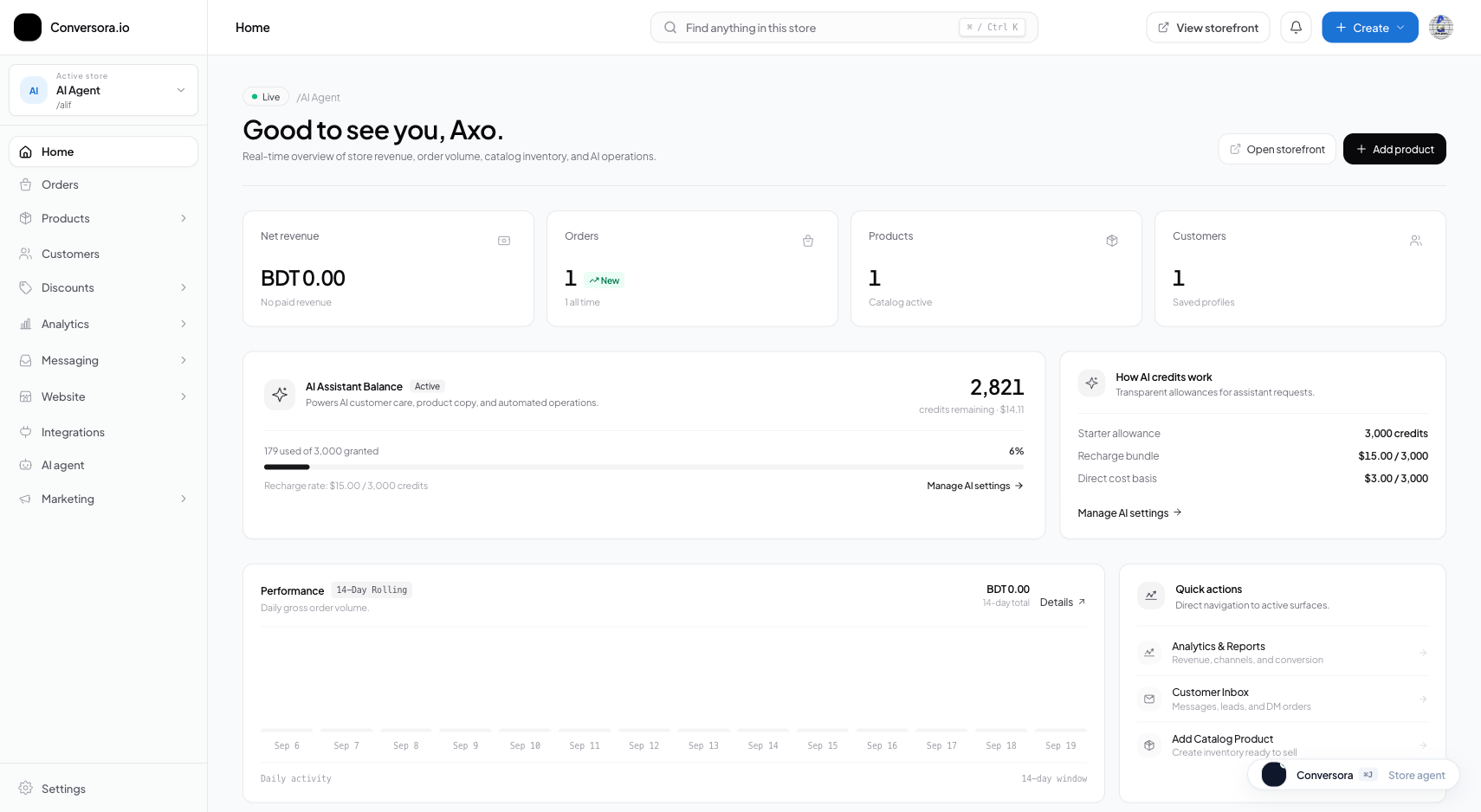
Interface view for this workflow.
1. Using the Store Switcher Navigation
The Store Switcher is located at the top of your admin navigation console. It displays the currently active store brand and provides instant one-click switching to any other store associated with your profile.
When you switch stores, the admin interface seamlessly refreshes its workspace context. All sidebar links, analytics cards, order queues, and inventory tables instantly reflect the selected brand. There is no need to log out, clear cookies, or open secondary private browsing tabs.
Locate Store Switcher
Click on the store name badge located in the upper-left corner of the admin header.
Select Target Store
From the dropdown menu, select the brand store you wish to manage.
Workspace Context Updates
The dashboard reloads with the selected store’s metrics, active orders, and catalog.
2. Creating Additional Brand Stores
You can expand your business by launching new stores at any time. Whether creating a new fashion label, an electronics outlet, or a dedicated B2B wholesale store, creating an additional store takes less than a minute.
Each newly created store begins with clean default settings, allowing you to configure independent shipping zones, connect separate social channels, and upload distinct branding materials.
Open Store Switcher
Click on the Store Switcher dropdown in the top header.
Click 'Create New Store'
Select the '+ Create New Store' option at the bottom of the dropdown list.
Provide New Brand Details
Enter the new store name, choose an available slug, and specify the operating currency.
If you manage stores for external clients as an agency, invite the client as an Administrator to their specific store so they can view sales without seeing your other client stores.
Practical Business Scenarios
How leading merchants implement this functionality in daily operations:
Troubleshooting & Common Issues
Diagnose and resolve frequent failure points quickly:
Frequently Asked Questions
Can I transfer ownership of a store to another merchant later?
Yes. Store Owners can invite another user as an Administrator and transfer primary ownership from the Store Settings panel.
Do my different stores share product inventory?
No. Every store maintains completely isolated inventory tables to prevent accidental stock synchronization errors between separate brands.